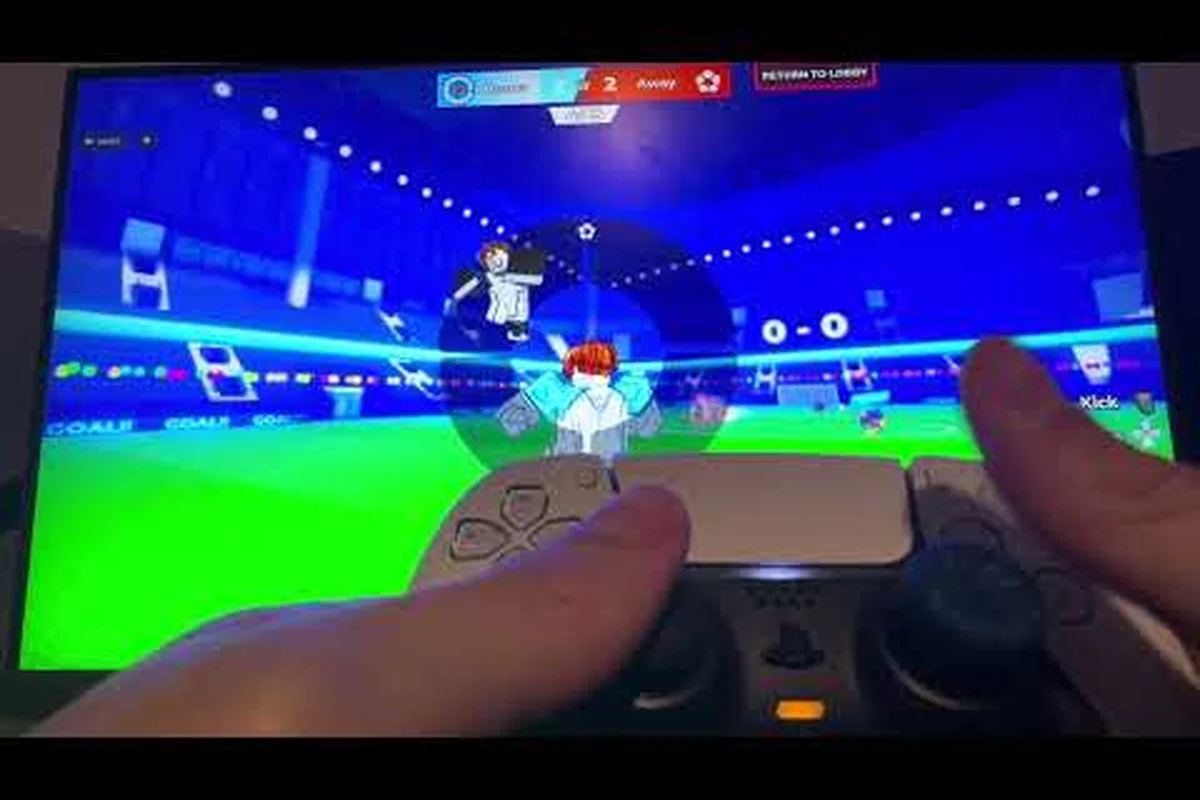
Blue Lock: Rivals Xbox controls matter because accurate inputs can turn a crowded 5v5 match into a controlled attack. For example, mapping shooting to the right trigger and sprinting to the left stick lets you release the ball at the correct moment while adjusting your run toward the goal. Rebinding the action buttons can also reduce thumb travel compared with the default Xbox layout. PlayStation players can compare button positions and sensitivity settings in the PS5 controller options, while cross-platform support keeps matches playable with Xbox and PlayStation controllers without interrupting the flow of play.
Xbox Controls and Supported Inputs
Blue Lock: Rivals runs on Roblox and supports Xbox and PlayStation controllers alongside keyboard, mouse, and mobile touch. That makes controller support broad, but it does not mean every console uses the same labels or identical layouts. The official Blue Lock: Rivals Roblox page as of November 2026 confirms that the game is a fan-made 5v5 football experience with separate inputs for shooting, passing, tackling, sprinting, and Style abilities.
That functional distinction is the safest way to understand blue lock rivals xbox controls. Instead of relying on a copied button chart, learn what each input does, then verify the displayed mapping on your own console. The game has not published a comprehensive official pad chart, and community-created charts can become outdated after Roblox or game updates.
Core Actions to Configure
A useful setup starts by identifying the actions you need during fast play rather than assigning every available control in advance. The following table uses action names rather than specific button letters because Roblox can present controller prompts differently across platforms and devices.
| Action | Why It Matters | What to Verify |
|---|---|---|
| Move | Positions your player on the field | Directional response and camera relationship |
| Shoot | Attempts a shot on goal | Whether shooting and aiming share an input |
| Pass | Sends the ball to a teammate | Context sensitivity and pass range |
| Tackle | Challenges for possession | Cancel behavior and accidental triggers |
| Sprint | Creates movement speed while active | Stamina use and stick behavior |
| Style ability | Uses the ability tied to your selected Style | Availability and aiming behavior |
| Secondary action | Handles game-specific actions | Whether it is remappable |
The official page also explains that players commit to a Style before queueing and that the selection determines which abilities are available during a match. That makes Style ability controls especially important. A comfortable movement layout is pointless if your most important ability is difficult to reach.
Why Published Button Charts Can Mislead
Many online control charts appear authoritative because they use clean screenshots and precise button labels. However, the available evidence does not support treating any one community chart as permanent. Roblox can change input handling, while the game itself can update prompts or actions independently. Platform families may also use different terminology for equivalent inputs.
Treat these details as the stable foundation, because a Blue Lock: Rivals button chart should be read as a snapshot of the current input layout rather than a permanent Xbox or PlayStation rulebook. For example, the same physical button may be labeled for different actions in a menu, while a controller prompt can change after an update without changing the underlying control behavior. Platform families may also use different terminology for equivalent inputs.
-
Functional mapping: shooting, passing, tackling, sprinting, and Style abilities are separate actions.
-
Platform context: Xbox and PlayStation controllers are supported, but displayed prompts can differ.
-
Version caution: the official game page does not document a complete controller chart.
-
Verification rule: confirm the current assignment in the game before entering a competitive or casual match.
For a broader look at the game’s general input system, compare the Blue Lock: Rivals controls overview. It can help you distinguish controller actions from keyboard and mouse options, especially when you are deciding whether to keep one setup across several devices.
PS5 Controls and Layout Differences
A PlayStation controller can work well in Blue Lock: Rivals, but blue lock rivals ps5 controls should be evaluated by function rather than by assuming every Xbox prompt translates directly. The central question is not which console is better; it is whether your chosen layout lets you move, aim, pass, and use Style abilities without awkward finger travel.
Platform Comparison by Function
| Control Need | Xbox Layout Consideration | PlayStation Layout Consideration |
|---|---|---|
| General setup | Confirm the game recognizes the pad | Connect through PlayStation or platform-compatible input |
| Movement | Check stick direction and camera behavior | Check stick direction and camera behavior |
| Action access | Compare face and shoulder inputs | Compare face and shoulder inputs |
| Dual-stick use | Test movement and aiming together | Test movement and aiming together |
| Prompt reading | Follow the current in-game label | Follow the current in-game label |
| Remapping | Verify in available game settings | Verify in available game settings |
This comparison highlights why blue lock rivals playstation controls cannot be reduced to a fixed set of button names. The game may show a PlayStation glyph while an Xbox controller follows a related action, yet exact prompts depend on the current client and how the input is configured.
Choosing a Comfortable PS5 Layout
Start with the action you trigger most often: movement, sprinting, or the Style ability. Place that action where your thumb or index finger naturally rests. Next, check whether secondary actions sit too close to a frequently used input. Accidental shots or tackles are especially disruptive because they can change possession without the intended input.
Players moving from Xbox may initially place every action where the equivalent controller input sits on the DualSense layout. A better method is to preserve the role, not the physical position. If you often need to shoot while adjusting direction, keep shooting and aiming easy to combine. If passing is the core of your chosen Style, give that action priority before cosmetic convenience.
The Blue Lock: Rivals action-key reference can help you separate the game’s core functions before testing them on a controller. Even though its main focus is not console-specific, the functional categories make it easier to compare Xbox and PlayStation behavior without inventing undocumented bindings.
Prompt and Response Checks
Make three short test runs before committing to a layout for Blue Lock: Rivals Xbox controls: first confirm that the controller is recognized by Xbox, then test a sprint and a shot in the practice area, and finally verify that the aiming and ability buttons respond during a match. This checks the full chain from controller detection to in-game input, helping identify whether a problem comes from the Xbox controller layout, the Blue Lock: Rivals control settings, or temporary match-state interference rather than the controller itself.
-
Complete ordinary movement in a quiet practice area.
-
Perform each action once in an empty server when possible.
-
Re-enter a match and repeat while the interface is active.
This sequence exposes differences that a single match may hide. Some prompts may appear only when an action is available, and controller feedback can shift depending on match state. Checking the behavior after entering a live queue gives you the most relevant result because interface prompts and team play are then present.
How to Use a Controller in
The most reliable way to use a controller in Blue Lock: Rivals is to connect it first, confirm that the game recognizes it, and then test every functional action in a low-pressure environment. This matters because a controller can be detected while still producing a layout that is difficult to use for a specific Style.
Connection and Setup Checklist
- Connect the controller and start the controller before opening Roblox when necessary.
- Use a supported cable or the console’s approved wireless connection method.
- Open Blue Lock: Rivals and check whether controller prompts appear.
- Test movement in both directions and confirm that the camera follows correctly.
- Try shooting, passing, tackling, sprinting, and the Style ability.
- Enter a match and confirm that the assignment remains unchanged.
The steps are intentionally function-based. They do not depend on an outdated chart, and they remain useful if the game updates its prompts. Blue Lock: Rivals is an unofficial fan experience maintained through Roblox, so checking the live client is more authoritative than relying on a screenshot posted weeks or months earlier.
Test Actions in Context
| Test | What It Reveals | Adjustment Needed |
|---|---|---|
| Move through open space | Basic input response | None if movement is immediate |
| Change direction while sprinting | Comfort under movement | Reposition sprint if it interferes |
| Aim a shot | Ability to combine inputs | Adjust camera or aiming behavior |
| Pass while pressured | Quick access during play | Prioritize the pass action |
| Tackle near teammates | Risk of accidental activation | Check context or remap |
| Use the Style ability | Reachability under pressure | Move the action if needed |
Do not conclude that a controller is unsupported because one action does not respond. First verify whether that function is available in the current context. Style abilities depend on the Style selected before queueing, and the game does not publish a universal chart explaining every context condition. The live game is the best source for those details.
When a Controller Stops Responding
First reconnect the controller, then reopen Blue Lock: Rivals and check whether controller prompts return. If the Xbox controller reconnects but inputs remain unresponsive, close any active overlay and test in a simple movement area away from the match interface. This isolates connection problems from control-layout, overlay, or match-state issues before you change any Xbox button assignments.
If movement works but an action does not, revisit the function rather than resetting the entire console. A crowded overlay can temporarily obscure prompts, and some actions may only become available after the match begins. If the problem continues across games and sessions, record the controller model, platform, and affected action so the issue is concrete when reported to support or the game community.
Controller Support and Cross-Platform Play
Blue Lock: Rivals controller support covers the main console use cases, while blue lock rivals cross platform matching depends on compatible systems, current server behavior, and each player’s own input setup. A cross-platform match does not require every participant to use the same controller family or even the same input method.
Supported Input Categories
| Platform | Supported Input Approach | Main Consideration |
|---|---|---|
| PC | Keyboard and mouse | Movement and action layout can differ from pads |
| Xbox console | Xbox controller | Prompts and available remapping should be checked in game |
| PlayStation console | PlayStation controller | Verify the current DualSense layout in the live client |
| Mobile | Touch controls | Layout depends on screen size and touch handling |
The official game page identifies PC, Xbox, PlayStation, and mobile as available platforms. It also confirms that matches use ten players in a 5v5 format and that goals determine the scoreboard result. In that context, input consistency matters because every action can affect possession during a short attacking sequence.
Playing Comfortably with Mixed Inputs
A player using blue lock rivals how to use controller setup may need slightly different muscle memory than a keyboard user. Practice the same play in two sessions. First, learn where each action is; then, focus on how the camera responds when movement and aiming overlap. This reduces the habit of reaching for a keyboard input that does not exist on a console.
| Match Situation | Keyboard User May Expect | Controller User Should Practice |
|---|---|---|
| Moving into space | One hand on movement keys | One stick while the other remains free |
| Shooting | Dedicated key | Aim plus shoot timing |
| Passing | Quick key press | Pass action without losing movement |
| Tacking | Direction plus key | Direction, sprint, and tackle coordination |
| Style ability | Dedicated shortcut | Ability reachability while steering |
Players should also avoid assuming that controller players have an advantage from aiming. Input familiarity can improve reaction speed, but a tightly configured keyboard setup can be just as consistent. The fairest approach is to learn the game’s timing through repeated play rather than to assume one device deserves every possession.
Update Expectations Before a Match
Changes to the game may affect prompts, controls, or available options. Before a session, check the current game page and test the action you rely on most. Community videos can provide useful context on player priorities, such as this community overview of Styles by KTG Gaming, but its specific claims are player-reported rather than official balance documentation.
For performance on PC or console, the Blue Lock: Rivals settings and camera guide provides a useful companion because camera behavior affects how clearly you read a pass. A technically correct controller setup still fails when the view makes target selection difficult.
Remapping Priorities and Match Practice
The best Xbox Series X|S remap is the one that reduces mistakes under pressure, especially when your team’s selected Style demands rapid switches between defending, dribbling, and shooting. Instead of changing every button, bind the actions used most in possession loss situations—for example, use the right stick for direct dribbling input and a face or bumper button for an immediate pass or shot. If a Style relies on timed flow movement, place that command where your thumb can execute it without leaving the left stick; this minimizes hesitation during high-pressure matches on Xbox Series X|S, Xbox One, and cloud play.
Recommended Remapping Order
| Priority | Action | Reason to Prioritize |
|---|---|---|
| 1 | Style ability | It may define your role and remain valuable throughout a match |
| 2 | Pass or shoot | These actions directly affect attacking outcomes |
| 3 | Sprint | Poor placement can interrupt movement or camera control |
| 4 | Tackle | Context-sensitive use requires a clear trigger |
| 5 | Secondary action | Useful, but less central to the core match loop |
This order is functional rather than a prescribed default. No official documentation provides a universal Xbox or PlayStation binding scheme, so any exact button assignment presented as fact would be misleading. Start with these priorities, then confirm each change in the live interface.
A Five-Minute Practice Routine
| Time | Drill | Success Condition |
|---|---|---|
| First minute | Basic movement and direction changes | Movement feels immediate and predictable |
| Second minute | Sprint plus camera adjustment | Sprint does not cause accidental actions |
| Third minute | Repeated shooting and passing | Actions register while movement remains stable |
| Fourth minute | Tackling near a teammate | Inputs rarely trigger unintentionally |
| Fifth minute | Selected Style ability | Ability activates reliably in an available context |
Practice with the same Style you expect to select before queueing. Since the character Style determines available abilities, switching styles can change which control deserves the most attention. The experience is a five-versus-five match with goals deciding the result, so even a small input delay can affect a scoring opportunity.
Common Troubleshooting Signs
-
Prompt appears but the action fails: verify whether the action is available in the current context.
-
Movement feels inverted: check the current camera and stick response rather than assuming the controller is defective.
-
An action fires too often: move it away from a crowded input area and test in a less crowded environment.
-
Controls reset after an update: revisit settings because community charts and saved assumptions may no longer match the client.
-
Controller works in menus only: reconnect the controller and test in the game world, where additional inputs may be required.
The Blue Lock: Rivals mobile controls guide is useful for comparing touch layouts with controller play, though mobile actions may not translate one-for-one. Focus on similar functional demands: reliable movement, fast directional changes, and clean access to high-frequency actions.
Practical Setup Summary and FAQ
A strong console setup is based on function, testing, and adaptation. Begin with movement, sprinting, shooting, passing, tackling, and the Style ability; assign each action where your hands can reach it comfortably. Then enter a match and confirm that the live prompts still match your setup. That method gives you a durable way to handle blue lock rivals xbox controls and blue lock rivals playstation controls without relying on an unofficial fixed chart.
Final Checks Before Matchmaking
| Area | Ready State |
|---|---|
| Connection | Controller remains connected and responsive |
| Movement | Directional input tracks the intended path |
| Actions | Shooting, passing, tackling, and sprinting all register |
| Style | The intended Style is selected before queueing |
| Prompts | Current on-screen labels match the tested layout |
| Cross-platform | Practice handles both your input and the match context |
The official Blue Lock: Rivals community page identifies the experience as an unofficial tribute, so it is important to distinguish verified platform facts from player opinion. Controller support is confirmed, yet detailed remaps and obscure button combinations remain undocumented. Verify them inside the game, where the current build provides the relevant context.
Frequently Asked Questions
Does Blue Lock: Rivals support Xbox controllers?
Yes. Blue Lock: Rivals supports Xbox controllers on compatible platforms, along with PlayStation controllers, keyboard and mouse, and mobile touch. Because the official game page does not publish a complete controller chart, verify the current movement, shooting, passing, tackling, sprinting, and Style ability prompts inside the game before starting a match.
Can I use the same controller setup on PS5 and Xbox?
Functionally, yes, but the physical layouts differ, so a fixed button chart may not transfer cleanly. Preserve the purpose of each action, such as shooting, passing, sprinting, or using a Style ability, then place it where it feels natural on each controller. Test every action in live play because prompts and settings may vary by platform or current game version.
Does Blue Lock: Rivals have cross-platform matchmaking?
Blue Lock: Rivals is available on PC, Xbox, PlayStation, and mobile, making cross-platform input practical. The official page does not document every matchmaking rule, so confirm the current server behavior in game. Players may use different input methods, and each player should adjust for camera feel, action access, and match timing rather than assuming shared prompts.
What should I remap first on an Xbox controller?
Prioritize the action your selected Style uses most, followed by your most frequent attacking action. Shoot, pass, tackle, sprint, and Style abilities are separate inputs, so each should be tested independently. Avoid remapping everything at once because changing several functions together makes it difficult to identify which adjustment improved control or created a new conflict.
Where can I find an official Blue Lock: Rivals controller chart?
There is no comprehensive official controller chart on the game page, and community charts may not reflect later updates. Use the official page to verify supported platforms, then inspect the current in-game prompts and settings. For individual action functions, the Blue Lock: Rivals action-key reference provides a useful starting point without presenting unverified console bindings as fact.